Mounts
Mounts let you use SMB shares and SFTP servers as job sources or destinations. A mount is a named, reusable connection — configure it once, then reference it in any number of jobs.
The Mounts page
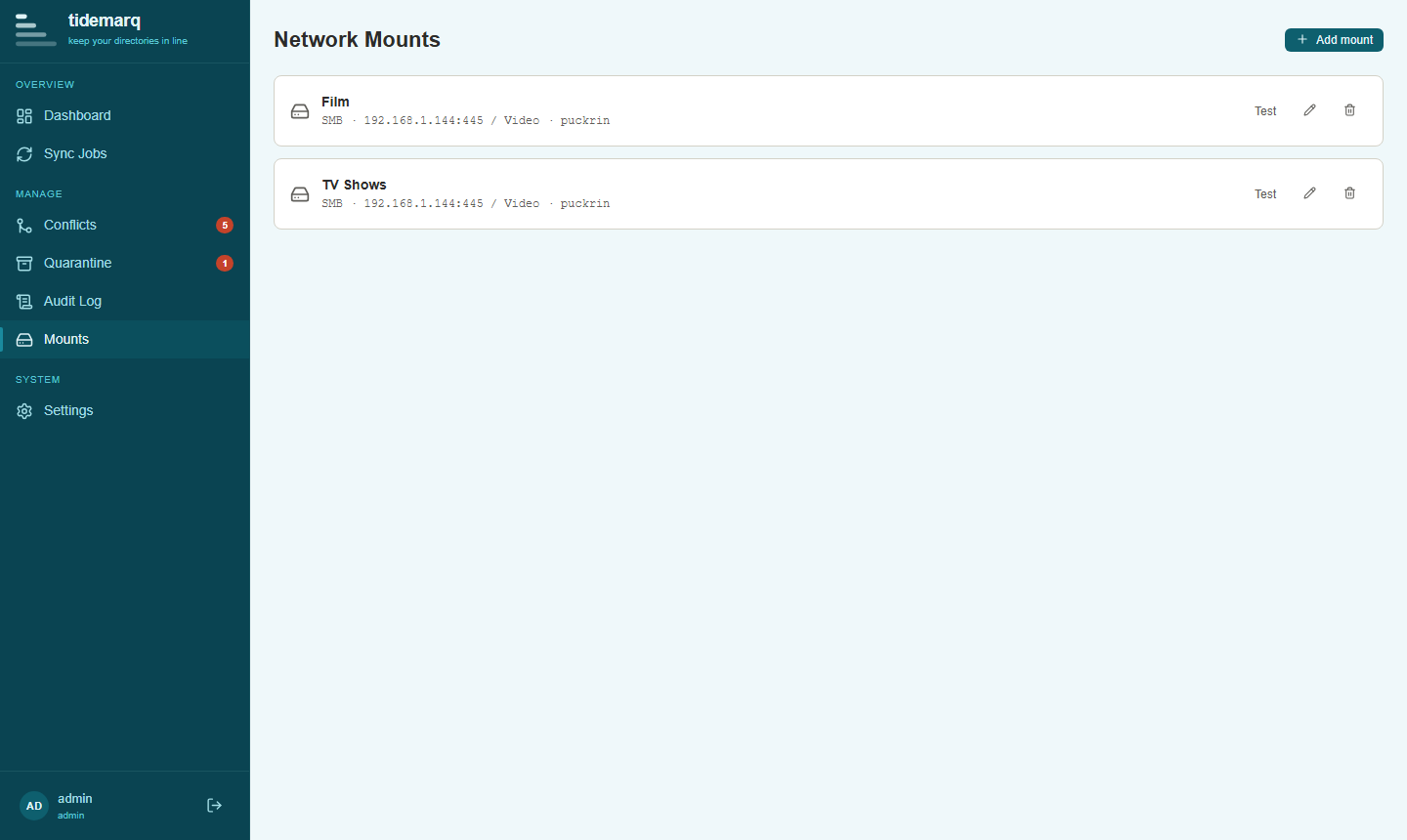
Navigate to Mounts in the sidebar to see all configured mounts, their connection status, and management actions. From here you can add new mounts, edit existing ones, test connectivity, and delete mounts that are no longer needed.
SMB mounts
SMB (Server Message Block) mounts connect to Windows file shares and NAS devices that expose a CIFS/SMB endpoint.
Adding an SMB mount
- Click Add Mount and select SMB
- Enter a name for the mount (used to identify it in the job wizard)
- Enter the server hostname or IP address
- Enter the share name (e.g.
backupfor\\server\backup) - Optionally enter a subdirectory path within the share
- Enter a username and password
- Click Test connection to verify before saving
Use the Test connection button before saving a mount. It verifies that tidemarq can reach the share and authenticate successfully.
SFTP mounts
SFTP mounts connect to any SSH server with SFTP subsystem support — Linux servers, NAS devices, and cloud VMs alike.
Adding an SFTP mount
- Click Add Mount and select SFTP
- Enter a name, hostname, and port (default: 22)
- Enter a username
- Choose authentication: password or SSH key
- For SSH key auth, paste the private key contents into the key field
- Optionally set the remote base path (defaults to the user's home directory)
- Test and save
SSH key authentication
SSH private keys (RSA, Ed25519) are supported. The key is stored encrypted at rest
using AES-256-GCM alongside the other mount credentials. Paste the full PEM-encoded
private key, including the -----BEGIN ... KEY----- header and footer.
Network mounts do not support two-way sync. Jobs with a mount as either source or
destination will use one-way-backup mode regardless of the configured
sync mode.
Credential security
All mount credentials — SMB passwords, SFTP passwords, and SSH private keys — are
encrypted at rest using AES-256-GCM before being written to the database. The
encryption key is derived from the application's JWT secret, which is itself persisted
to <data_dir>/.jwt_secret and never transmitted anywhere.
Deleting a mount
A mount can only be deleted if it is not referenced by any existing job. Remove or reconfigure all jobs using the mount first, then delete it from the Mounts page.