Sync Jobs
A sync job defines what to sync, where to sync it, when to run, and how to behave when things change. Jobs persist across container restarts and can be managed entirely from the web UI.
Creating a job
Click New Job on the Sync Jobs page to open the five-step wizard.
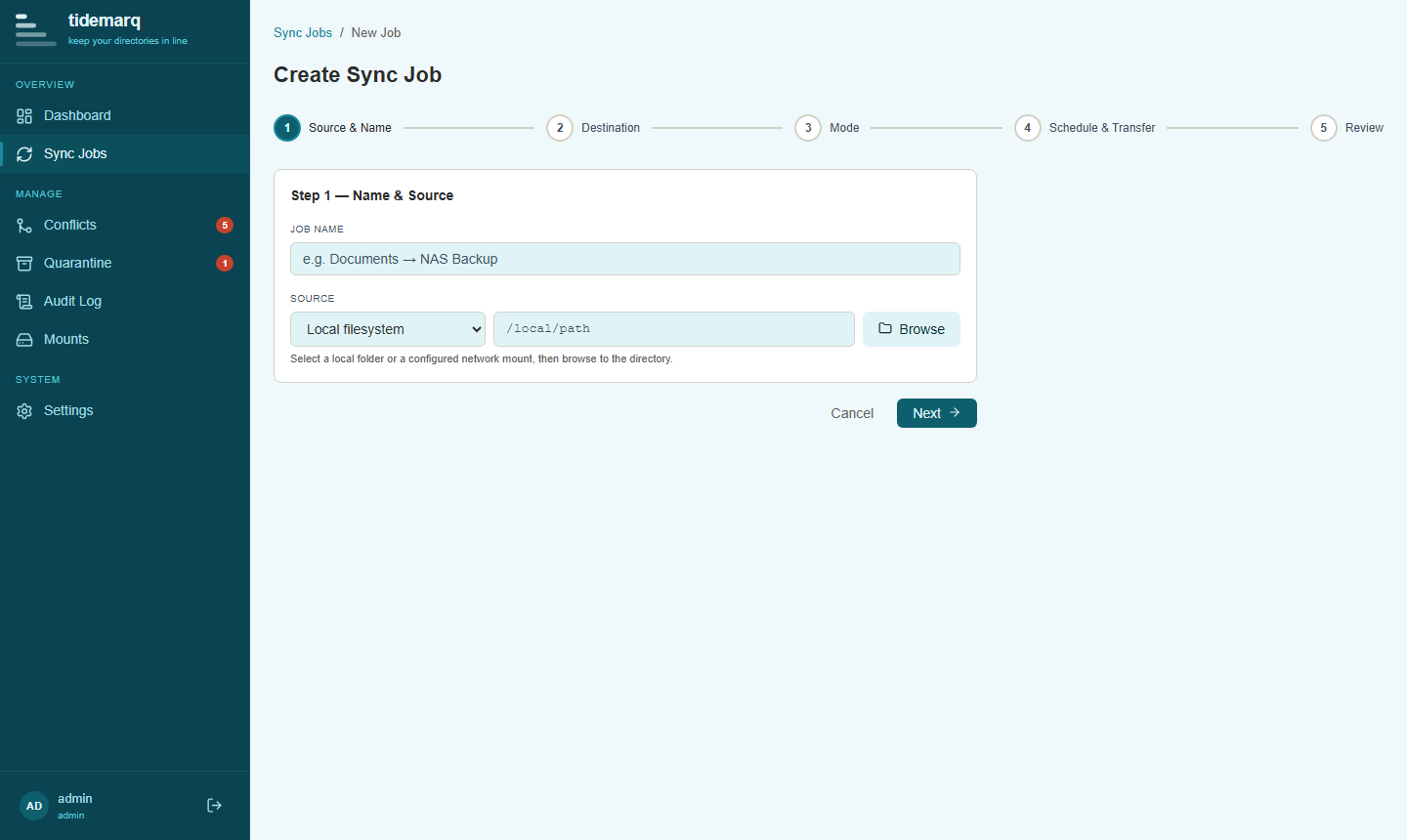
Step 1 — Name & mode
Give the job a name and choose a sync mode (see below). Job names must be unique — the UI and API will return an error if you try to create or rename a job to a name that is already in use.
Step 2 — Source
Choose a local directory path or a configured network mount as the source. For local paths, type the absolute path directly. For mounts, select from the dropdown of configured mounts.
Step 3 — Destination
Same options as source — local path or a configured mount. For local filesystem jobs, the source and destination paths cannot be the same.
Step 4 — Schedule & triggers
Choose how the job is triggered:
| Trigger | Description |
|---|---|
| Manual | Job only runs when you click Run |
| Cron | Standard cron expression, e.g. 0 2 * * * for 2 am daily |
| Watch | Monitors the source directory with inotify/FSEvents; runs after a 3-second quiet period following any change |
Cron triggers and watch triggers are re-registered automatically after a container restart.
Step 5 — Review & create
Confirm your settings. The job is created in idle state.
Sync modes
one-way-backup
Files are copied from source to destination. Files deleted from the source are not removed from the destination — the destination is an ever-growing archive. Safe for backup scenarios where you never want data lost at the destination.
one-way-mirror
The destination is kept as an exact mirror of the source. When a file is deleted from
the source it is moved to the destination's quarantine directory
(.tidemarq-quarantine/) rather than being permanently deleted.
Files in quarantine are restorable from the Quarantine view.
two-way
Changes propagate in both directions — source to destination and destination to source.
Two-way sync is supported for local filesystem paths only; jobs with network mount
endpoints fall back to one-way-backup automatically.
When the same file is modified on both sides since the last sync, a conflict is raised. See Conflicts for how conflicts are handled.
Job states
| State | Meaning |
|---|---|
idle | Ready and waiting for the next trigger |
running | Actively transferring files |
paused | Mid-transfer pause; resumes from a safe checkpoint on next trigger |
error | Last run failed; details in the job detail view |
disabled | Triggers suspended; will not run until re-enabled |
Live progress
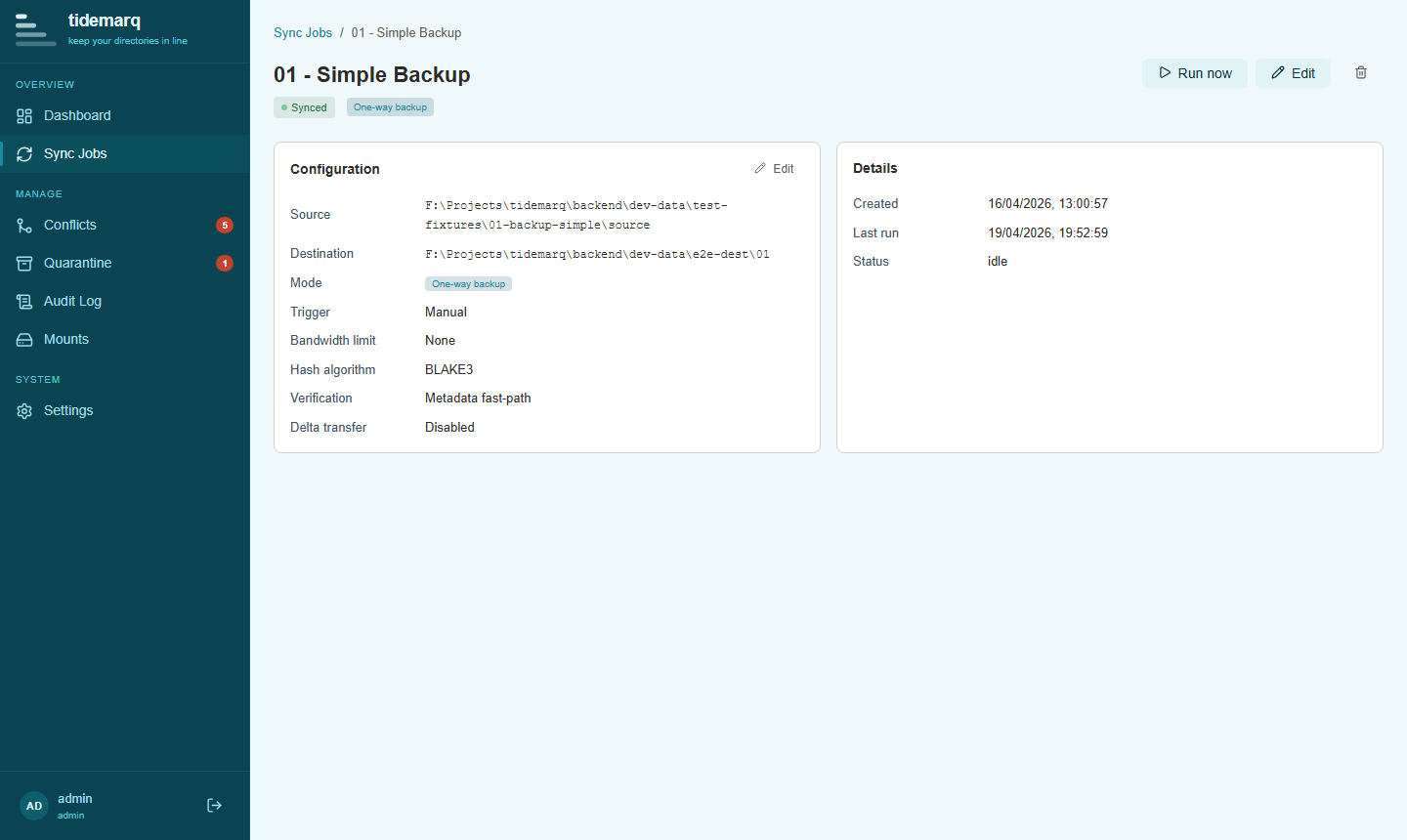
Open a job's detail page while it is running to see live progress via WebSocket: files transferred, bytes written, current transfer rate, ETA, and the file currently being processed. No page refresh required.
Pausing & resuming
Click Pause on the job detail page while a job is running. The engine checks for pause signals between file transfers and at chunk boundaries within large files, so the pause takes effect promptly without corrupting an in-progress transfer. The job resumes from the same checkpoint on the next trigger.
Bandwidth limiting
Set a rate limit (KB/s) on the job to throttle transfers. This applies per-file during the copy phase. Leave blank for unlimited.
Running the same job twice with no file changes produces zero mutations — the engine compares source and destination hashes before writing anything.